
Wildlife & textures
Make your photos larger with 2× or 4× upscaling. Compare and download, without uploading your image.
Drag and drop a photo, or paste an image from your clipboard.
JPG, PNG, WebP · Up to 20 MBMove to another area of the image. Both sides show the same crop at output-pixel scale.
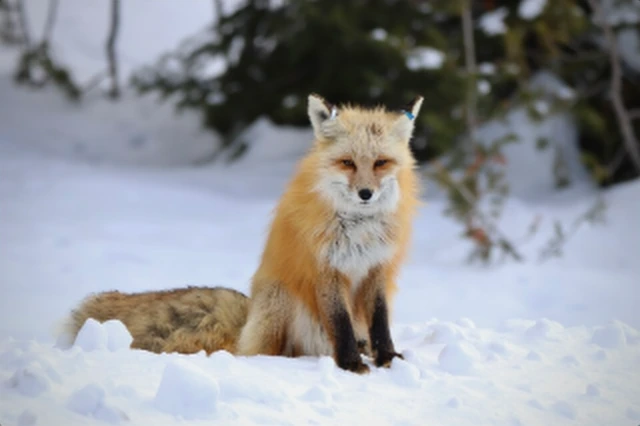
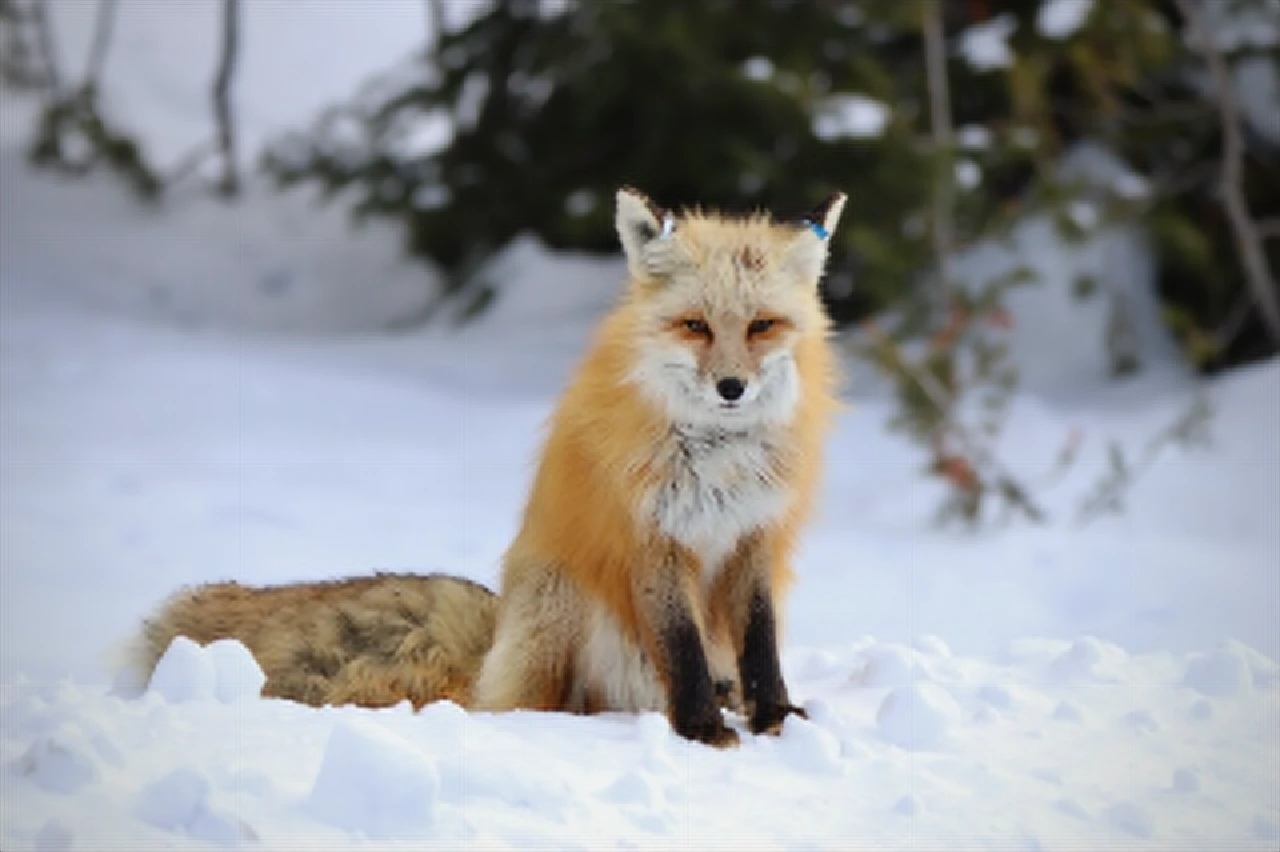
Three examples processed with the same local ESRGAN Slim AI tool. Compare the low-resolution input, 2× result and 4× result.
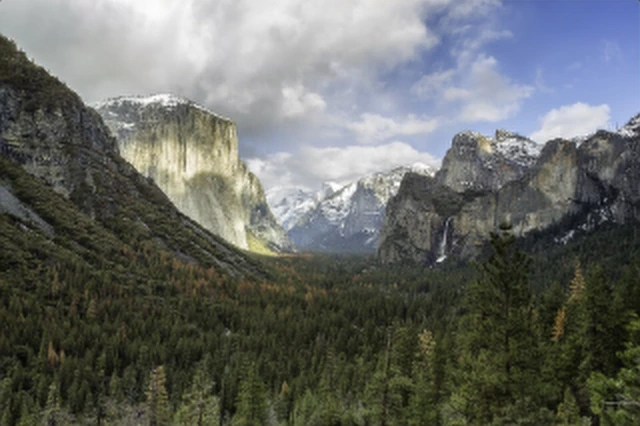
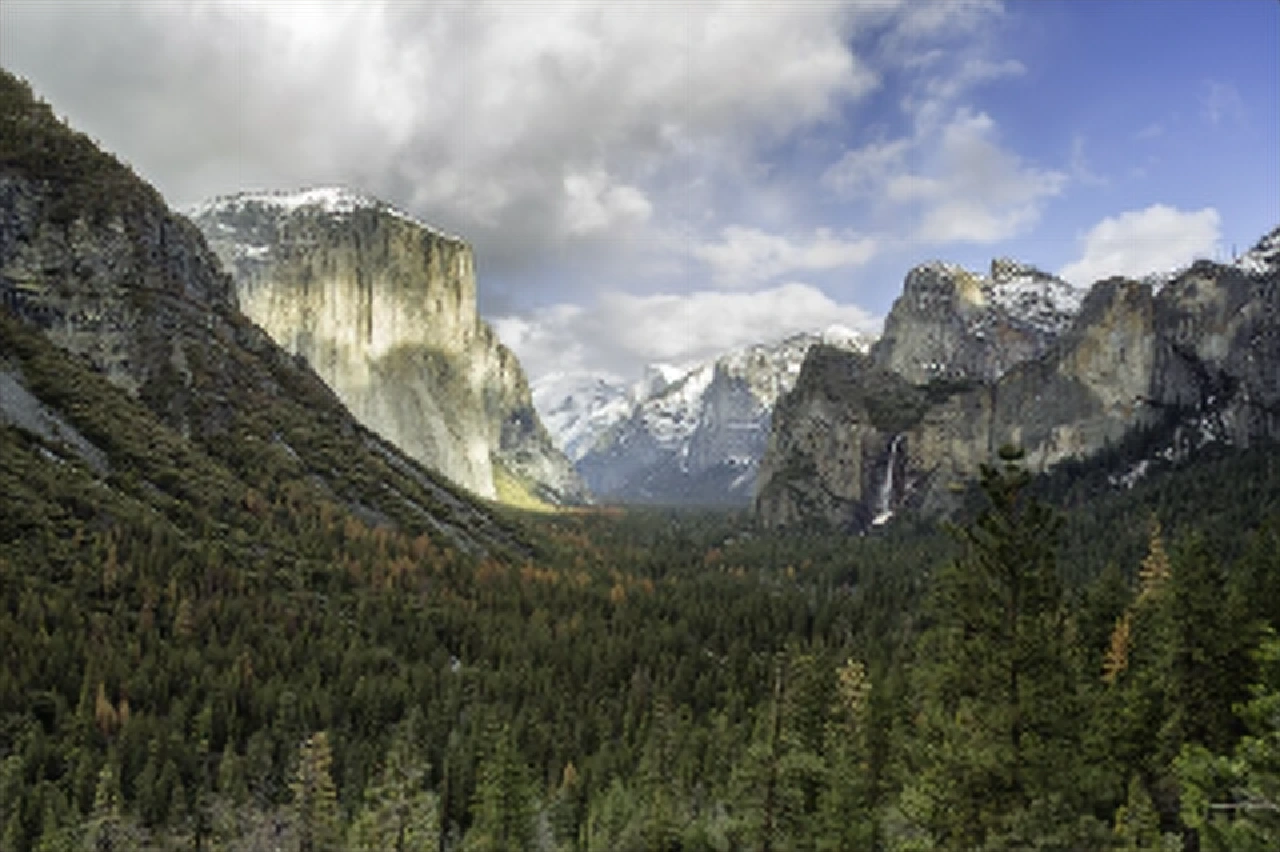
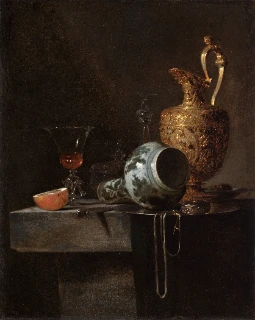
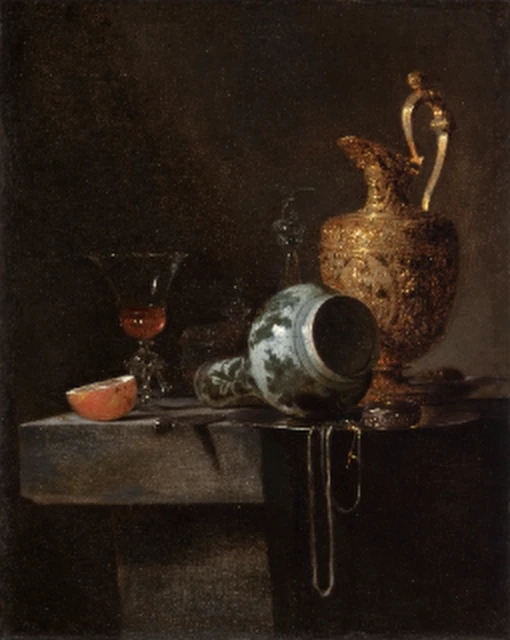
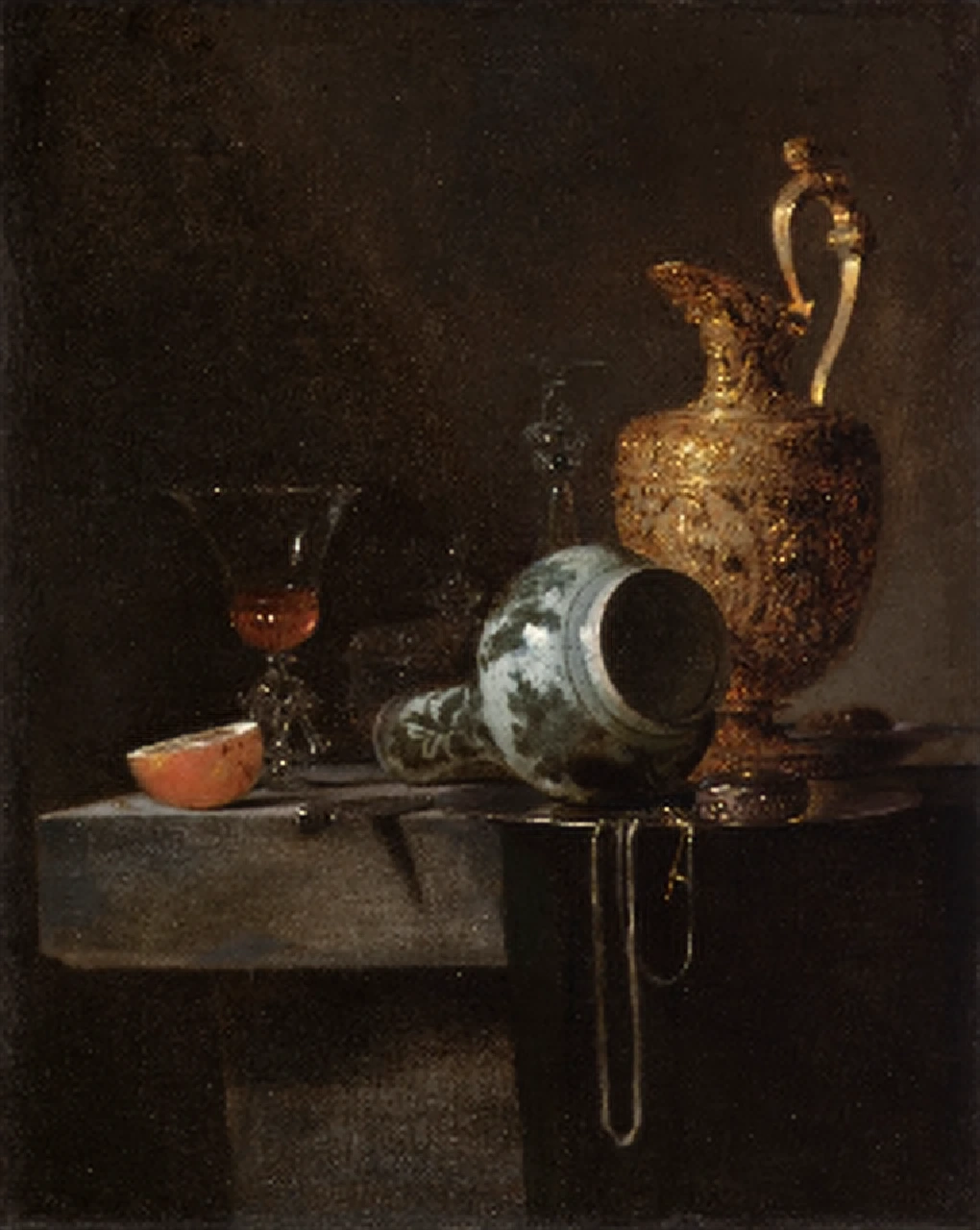
Measured in headless Chrome 158 on macOS, November 27, 2026. Time includes model loading when needed, inference and PNG export, rounded to 0.1 seconds; actual speed varies by device and cache. Images are WebP display copies of the real results, not simulated AI effects. Try the sample yourself and use 100% detail to inspect the original and result.
Sample sources: NPS/A. Falgoust (public domain), Tommy Lisbin (CC0), Willem Kalf / LACMA (public domain).
Open a JPG, PNG or WebP from your device, or try the built-in sample.
Choose 2× or 4×, then select AI super-resolution or standard resizing.
Drag the comparison slider, or switch to 100% detail for a closer look. Download the result in your chosen format.
Scale applies to both dimensions. A 600 × 400 image has four times as many pixels at 2×, and sixteen times at 4×.
Upscaling increases the number of pixels in an existing image while keeping its proportions. A small graphic can occupy more space in a layout, a photo can meet a minimum pixel requirement, and a cropped illustration can be prepared for a larger screen. Unlike cropping, which removes part of a picture, enlargement keeps the entire frame.
This image upscaler offers two different ways to make a file larger. Choose AI super-resolution when you want a neural model to estimate new details from the existing pixels. Choose standard resize when you need exact dimensions, a quick export or transparent edges. Both methods create a new file rather than replacing the original on your device.
| Original size | 2× output | 4× output |
|---|---|---|
| 320 × 240 | 640 × 480 | 1280 × 960 |
| 600 × 400 | 1200 × 800 | 2400 × 1600 |
| 960 × 540 | 1920 × 1080 | 3840 × 2160 |
Use the smallest factor that meets your needs. Doubling width and height quadruples the pixel count; multiplying both by four creates sixteen times as many pixels. A bigger file is not automatically a better picture. Large results also take more memory and storage space, particularly on mobile devices.
AI super-resolution uses a learned model to estimate how textures and edges might appear at higher resolution. On a small photograph, it may make boundaries clearer or give surfaces a more defined appearance. It cannot know exactly what was in the original scene. Fine writing, patterns and faces can change, so inspect the result before using it for important work.
Standard resizing uses interpolation to calculate new pixels from neighboring pixels. It is useful when the main objective is a specific file size rather than reconstructing visual detail. It can preserve the alpha channel of a transparent PNG or WebP. It does not invent missing detail or make severely blurred text readable.
The AI mode uses the open-source ESRGAN Slim models through UpscalerJS. Models run on your device, not a paid image inference API. The first use may take longer while the browser fetches the model. If your browser cannot run it, select standard resize explicitly.
A small product image may need more pixels before it fits a storefront gallery or catalog. Enlarge the original, compare the output with the source, and inspect the labels and edges. Do not use AI-generated details as evidence of a feature that is not actually present in the product.
A larger illustration can be easier to place in a presentation, design mockup or wallpaper. Try the AI mode for raster artwork with soft edges and textures, and standard resizing for transparent graphics. For a vector logo, exporting the original vector file at the needed size is preferable to upscaling a screenshot.
A crop often contains fewer pixels than the original photograph. Upscaling can help the crop fit a bigger layout, but starting from the largest available original is usually better. When working with screenshots, check lettering and interface elements carefully; smoothing or predicted details can reduce legibility.
Print quality depends on both the pixel dimensions and the intended physical size. For example, a 2400-pixel-wide image corresponds to eight inches at 300 pixels per inch. Increasing the pixel dimensions does not necessarily add the genuine detail that a higher-resolution original would contain. Make a test print before committing to a large format.
The tool displays the selected input and output dimensions before processing. Once a result is ready, use the comparison slider to view the source and enlarged image at the same display size. Download the result, then inspect it in an image viewer at its actual pixel dimensions.
| Item | What this tool does |
|---|---|
| Price | Free. No account, no credits, no watermark |
| Where it runs | Your browser tab; the image is not uploaded |
| Scale | 2× and 4×, with AI super-resolution or standard resize |
| Input | JPG, PNG or WebP, up to 20 MB and 16 megapixels |
| AI input | Up to 1 megapixel |
| Output | Up to 16 megapixels and 8,192 pixels per side; PNG, JPG or WebP |
| Model | Open-source ESRGAN Slim via UpscalerJS, downloaded to the browser |
| Not supported | Batch processing, 8× or 16×, video and dedicated face restoration |
Last checked: 27 November 2026.
Your image is decoded and processed within the current browser tab. It is not transmitted to an image processing server. AI software and model weights are downloaded from a content delivery network; the image itself remains local. There is no account or image history. Download the result before closing the page.
To reduce the chance of browser memory errors, the tool accepts JPG, PNG and WebP files up to 20 MB, with a source limit of 16 megapixels. AI mode has a smaller one-megapixel source limit. The output must fit within 16 megapixels and 8192 pixels per side. If a job is too large, choose a smaller source or a lower factor. For an unsupported file, convert it to PNG or JPG first.
Try the wildlife, landscape or artwork sample if you do not have an image ready. Each sample is reduced to a small image on your device so you can run the actual tool and compare its output. The reference photographs and artwork are not claimed as AI-generated results.
Keep intentional pixel edges crisp with the pixel art upscaler, or check whether your image reaches a 3,840-pixel long edge with upscale image to 4K.
Yes. Both processing modes run in your browser without an account, credits or a watermark. Device memory and file-size limits still apply.
No. There is no sign-up, no login and nothing to install. Open this page in a current version of Chrome, Edge, Firefox or Safari, choose an image and run it. Both modes work inside the browser tab.
There is no account, no credit balance and no daily quota. The limits are technical: one file up to 20 MB, a source up to 16 megapixels, and an output capped at 16 megapixels and 8,192 pixels per side. AI mode accepts a source up to 1 megapixel. Browser memory is the practical ceiling for very large files.
AI super-resolution uses ESRGAN Slim to infer additional image detail. Standard resize uses browser interpolation and is usually faster. Neither can recover the exact original details missing from a low-resolution file.
If your source dimensions and the 2× or 4× factor produce a long edge of at least 3,840 pixels, you can create a 4K-sized result, within the output limits. The aspect ratio stays the same.
No. The tool reads and processes your chosen file locally. The browser downloads AI model files and supporting software from a CDN, but does not send the selected image to that CDN or an inference service.
The image is decoded and processed inside the browser tab and is not sent to an image server. There is no account, no upload history and no stored copy on the site. Model files are downloaded from a CDN, but your image is not part of that request. Download the result before closing the tab.
Choose JPG, PNG or WebP, up to 20 MB and 16 megapixels. AI mode accepts a source up to 1 megapixel. The result is capped at 16 megapixels and 8,192 pixels on either edge.
Yes, in a modern mobile browser. Phones have less memory, so very large photos or 4× results may exceed what the tab can handle. Standard resize is the safer choice for a 12-megapixel phone photo; AI mode is limited to a 1-megapixel source.
Choose standard resize and PNG or WebP output to retain transparency. AI mode may not retain transparency, and JPG does not support transparency.
No watermark. Download the result as PNG, JPG or WebP. PNG or WebP with standard resize keeps transparency; JPG fills transparent areas with white.
The first AI run needs to download a model, and processing depends on your browser, hardware and memory. Try a smaller image or switch to standard resize if the model cannot load.
Standard resize usually finishes in a second or two. AI mode downloads the model on the first run and then processes on your device: a 320-pixel-wide sample photo took about 35 seconds for 2× in a laptop browser. 4× and larger photos take longer, and a phone is slower than a desktop.
No. Severe blur, unreadable letters and missing facial details cannot reliably be recovered. Review the output at its intended size, particularly for text, logos and faces.
No. Download creates a separate image. Your original file remains unchanged.


