
Keep the original pixel grid intact
A pixel art upscaler should enlarge the blocks of color that make up the drawing, not guess what a realistic version of the drawing might look like. Nearest-neighbor scaling copies the nearest source pixel into every corresponding output position. At 2×, one pixel becomes a 2 × 2 square; at 4×, it becomes a 4 × 4 square. There is no smoothing or blending between adjacent colors.
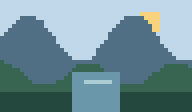
The three original illustrations above are generated locally and enlarged by the same function used for uploaded files. Each comparison displays the original and resulting canvas dimensions, the selected algorithm and measured canvas processing time. The thumbnails deliberately use pixelated rendering so the edges remain visible at display size. Try an example to inspect it and download the PNG.
Choose 2× or 4× for sprites and tiles
| Original | 2× output | 4× output |
|---|---|---|
| 16 × 16 sprite | 32 × 32 | 64 × 64 |
| 32 × 32 icon | 64 × 64 | 128 × 128 |
| 64 × 64 tile | 128 × 128 | 256 × 256 |
| 320 × 180 scene | 640 × 360 | 1280 × 720 |
Pick an integer multiplier that fits your intended game canvas or export size. If your engine already performs nearest-neighbor rendering at runtime, you may prefer to keep the source sprite small to avoid increasing asset size. A baked larger version is useful for social previews, presentation slides or environments that otherwise apply smoothing.
Standard resizing versus AI for pixel art
Regular smooth resizing is useful for photographs but can add intermediate colors along sprite edges. AI super-resolution goes further by estimating detail that is not present in the original. For hand-placed pixels, both can undermine the deliberate visual style. The dedicated pixel art upscaler on this page uses nearest-neighbor rather than either of those approaches.
For photographic textures or scanned artwork where natural transitions are desirable, use the general image upscaler. Its AI mode has a one-million-source-pixel limit and its smooth standard mode has different visual behavior. AI improvement on pixel art is not guaranteed; compare the result against your original before using it.
Export a clean transparent PNG
Choose a PNG with an existing alpha channel when enlarging game sprites, icons or overlays. The checkerboard behind the previews is only a display background; it is not part of the exported image. JPG cannot hold transparency, and a white background in a JPG will remain white. Converting to PNG cannot recover pixels or transparency that have already been lost.
Keep a copy of your original sprite sheet before enlarging. If the sheet contains equally spaced tiles, multiply the tile width, height, gutters and offsets by the same scale in your game engine. That avoids cropping at the wrong coordinates.
Know the size limit before exporting
The output is limited to 16 million pixels, with no side longer than 8192 pixels. At 4× a 1000 × 1000 source becomes 4000 × 4000, exactly 16 million pixels. Larger square sources need 2× or a smaller source. A 2000 × 2000 source at 2× reaches the same limit. Rectangular art can have a longer side if the total pixel count remains within the limit.
Your file is decoded and drawn by the browser without sending it to a server. Processing speed depends on output size and device memory; the displayed canvas timing does not include PNG encoding. If you need a particular display resolution, consult the 4K image upscaler for a dimension guide. Return to the pixel art tool to enlarge another sprite.
Actual nearest-neighbor results
Three original samples enlarged with the tool above. Both versions are displayed at the same visual scale with hard pixel edges. Canvas timing rounded to 0.00 ms on the test browser; these tiny samples were below its timer precision.
 Original
 4× output
 Original
 4× output
 Original
 4× output